Individual eKYC
Understand the concept of electronic Know Your Customer (eKYC) within our platform. This guide explains how to leverage digital methods for individual user identity verification.
Document Verification via eKYC Service
When the Process eKYC API is invoked, a unique document capture/collection link will be generated for the user. It is recommended for partners to render or display the eKYC web page in an in-app web browser to maintain app stickiness.
The eKYC capture link will only be valid for 90 minutes after it is generated. A fresh eKYC link can be generated again using the Process eKYC API when the previous one has not been submitted. Go to the Performing eKYC section to know more about the workflow for generating an eKYC capture link.
eKYC Document Capture Web Pages
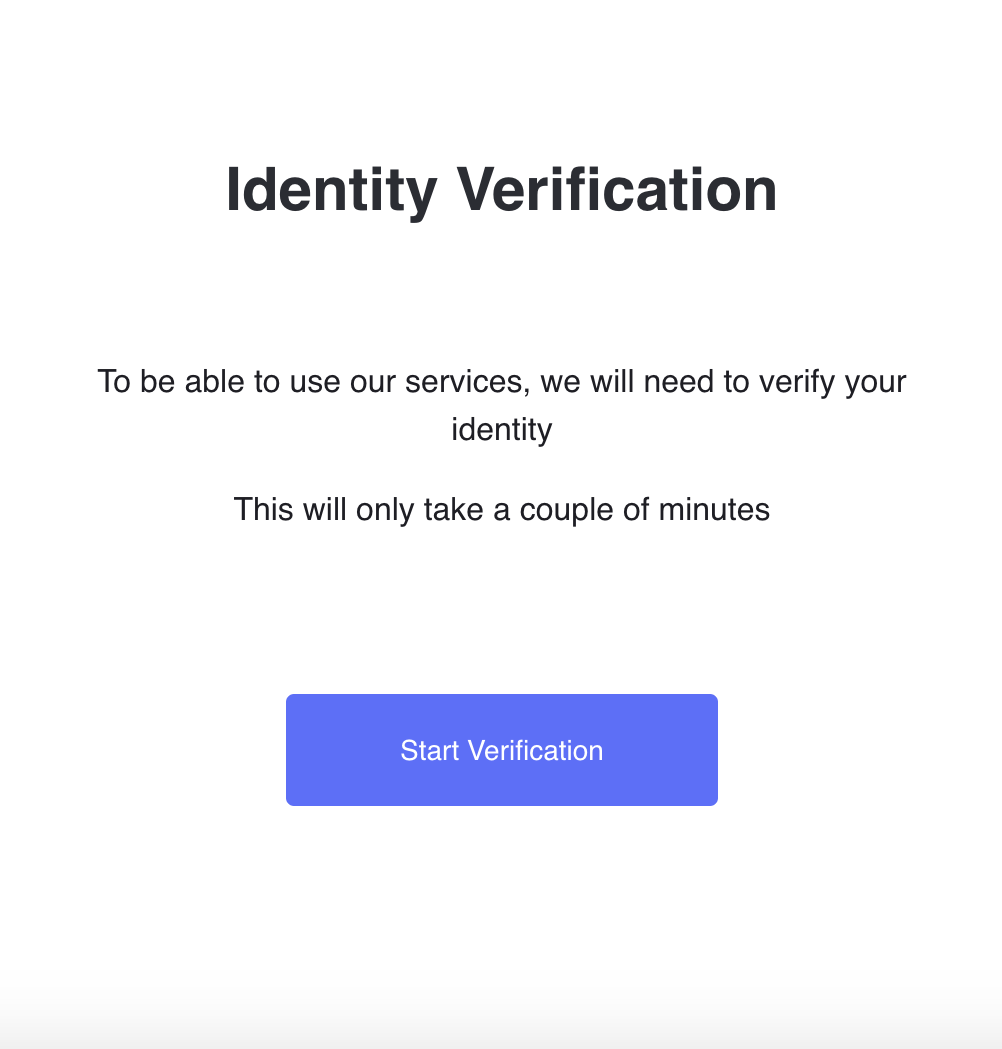
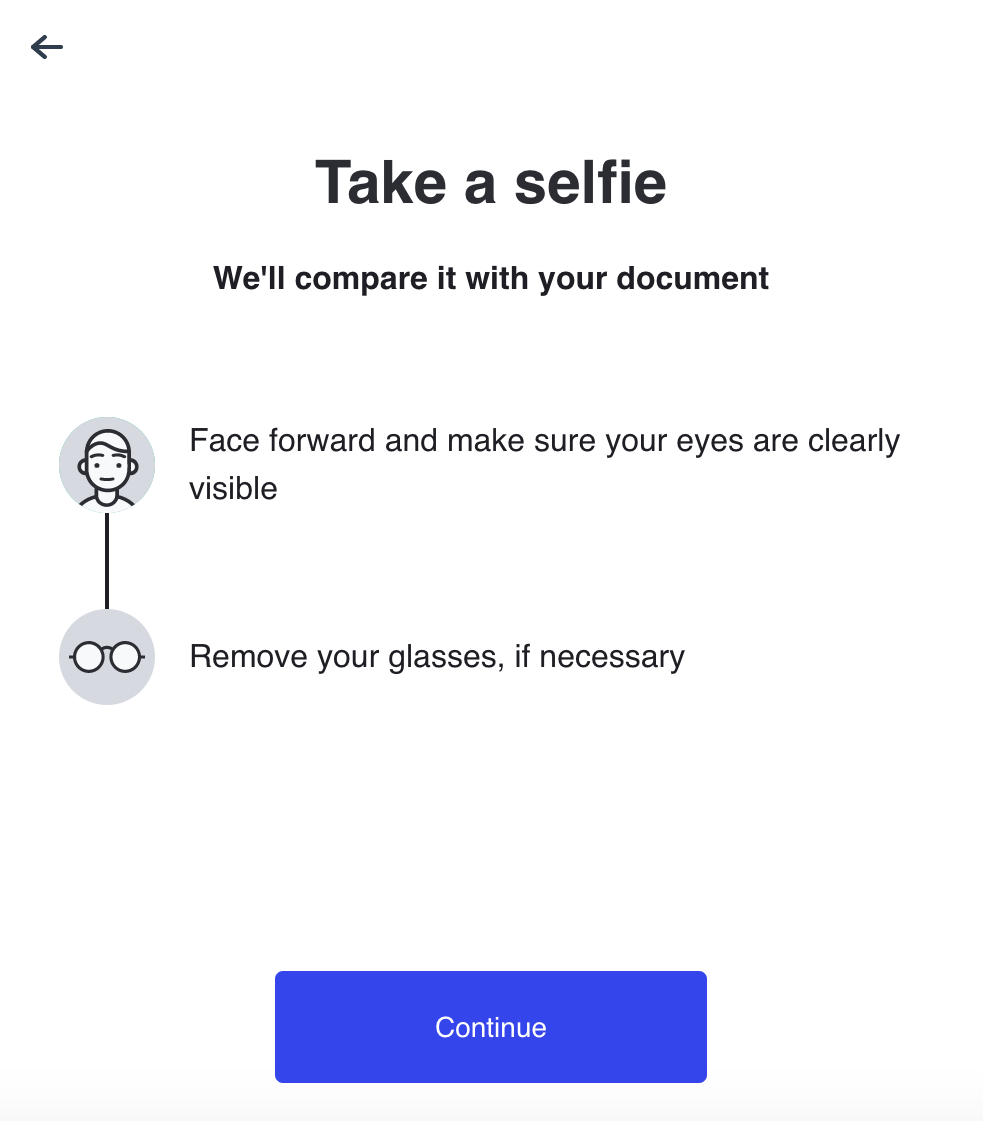
The verifying user will go through a series of pages that require the capture of the identity document and a live selfie.
eKYC start page
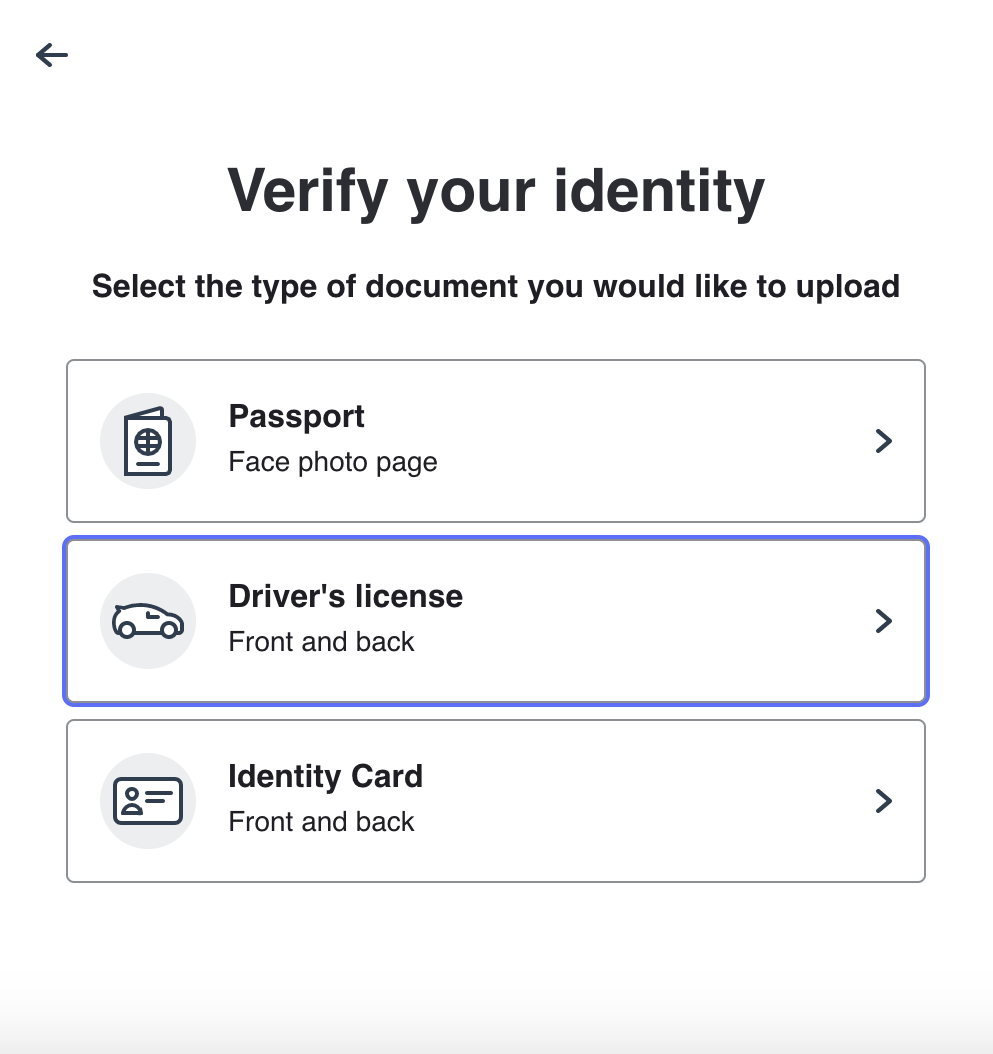
Document type selection page
The list of supported documents available for upload will depend on the regional document availability and MatchMove Compliance's assessment of document risks.
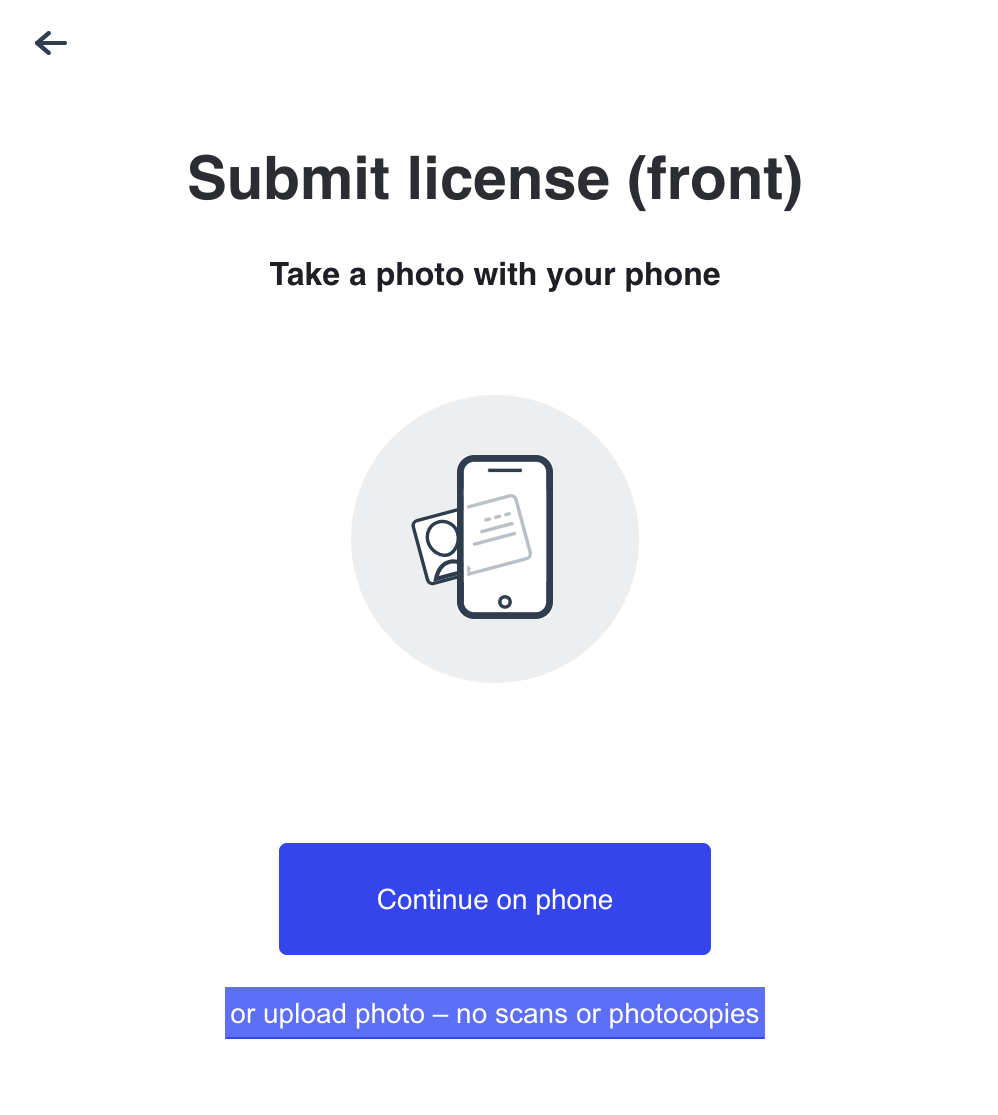
Selected document page
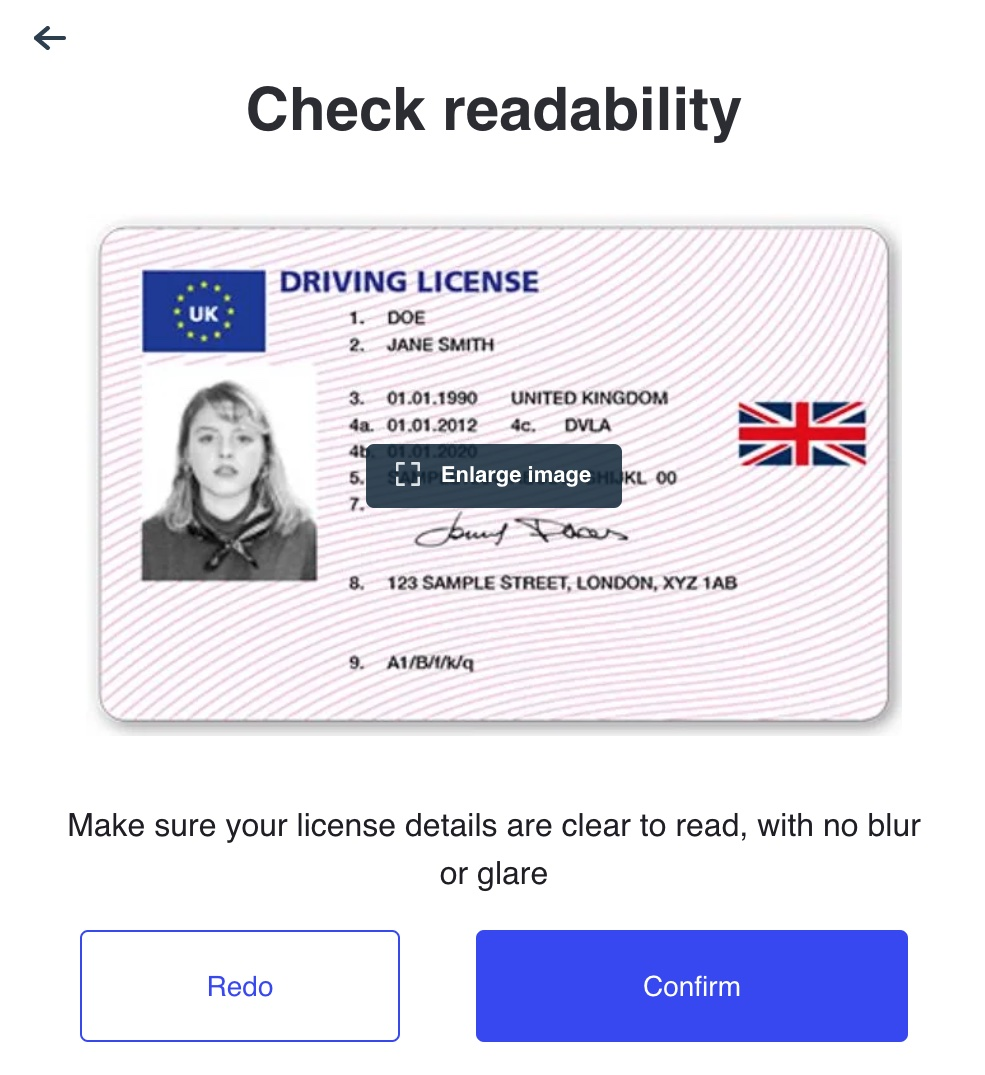
Document capture page
Depending on the selected document, a back image of the document may be required.
Live selfie capture page
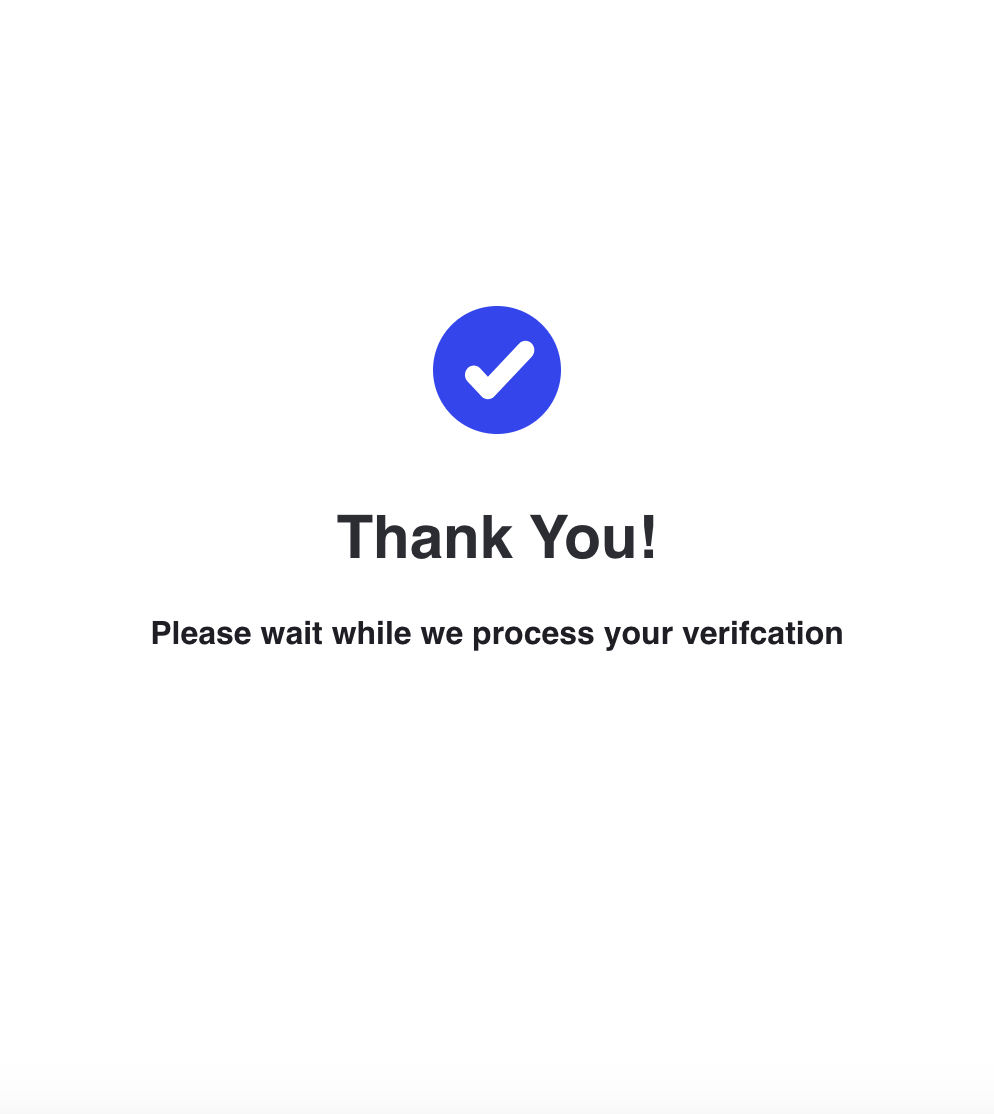
Confirmation page
eKYC Web Page Customization
To maintain the partner's brand coherence with the standalone eKYC pages, a few look-and-feel customizations are supported. These include customization to text, buttons, links, pop-ups, icons, and background colors. The customized changes must be defined using the listed parameters below and must be passed to the Process KYC API customization argument.
Supported UI parameters for customization:
font_family_title | Change the font family of the screen titles |
font_family_subtitle | Change the font family of the screen subtitles |
font_family_body | Change the font family of the screen body |
font_size_title | Change font size of the screen titles |
font_size_subtitle | Change font size of the screen subtitles |
font_size_body | Change font size of the screen body |
font_weight_title | Change font weight on SDK screen titles (number format only, e.g., 400, 600) |
font_weight_subtitle | Change font weight on SDK screen subtitles (number format only, e.g,. 400, 600) |
font_weight_body | Change font weight on SDK screen content (number format only, e.g,. 400, 600) |
color_content_title | Change the text color of the screen titles |
color_content_subtitle | Change the text color of the screen subtitles |
color_content_body | Change the text color of the screen body |
color_background_surface_modal | Change the background color of the screen |
color_border_surface_modal | Change the color of the SDK screen border |
border_width_surface_modal | Change the border width of the screen |
border_style_surface_modal | Change the border style on the screen |
border_radius_surface_modal | Change the border radius of the screen |
color_content_button_primary_text | Change the color of the Primary Button text |
color_background_button_primary | Change the background color of the Primary Button |
color_background_button_primary_hover | Change the background color of the Primary Button on hover |
color_background_button_primary_active | Change the background color of the Primary Button on click/tap |
color_border_button_primary | Change the color of the Primary Button border |
color_content_button_secondary_text | Change the color of the Secondary Button text |
color_background_button_secondary | Change the background color of the Secondary Button |
color_background_button_secondary_hover | Change the background color of the Secondary Button on hover |
color_background_button_secondary_active | Change the background color of the Secondary Button on click/tap |
color_border_button_secondary | Change the color of the Secondary Button border |
color_content_doc_type_button | Change Document Type Button text color |
color_background_doc_type_button | Change the background color of the Document Type Button |
color_border_doc_type_button | Change the color of the Document Type Button border |
color_border_doc_type_button_hover | Change the color of the Document Type Button border on hover |
color_border_doc_type_button_active | Change the color of the Document Type Button border on click/tap |
color_background_icon | Change the color of the background circle of pictogram icons in the SDK |
border_radius_button | Change the border radius value of the Primary, Secondary, and Document Type Option buttons |
color_content_link_text_hover | Change Link text color |
color_border_link_underline | Change Link underline color |
color_background_link_hover | Change the Link background color on hover |
color_background_link_active | Change the link background color on click/tap |
color_content_alert_info | Change the warning pop-up text color |
color_background_alert_info | Change the warning pop-up background color |
color_content_alert_info_link_hover | Change warning popup fallback Link background on hover |
color_content_alert_info_link_active | Change warning popup fallback Link background on click/tap |
color_content_alert_error | Change the error pop-up text color |
color_background_alert_error | Change the error pop-up background color |
color_content_alert_error_link_hover | Change error popup fallback, Link background on hover |
color_content_alert_error_link_active | Change error popup fallback Link background on click/tap |
color_background_info_pill | Change the background color of the Cross Device, Camera/Mic Permissions screens' information header pill |
color_content_info_pill | Change the text color of the Cross Device, Camera/Mic Permissions screens' information header pill |
color_background_button_icon_hover | Change the background color of the Back and Close icon buttons on hover |
color_background_button_icon_active | Change the background color of the Back and Close icon buttons on click/tap |
color_background_button_camera_hover | Change the background color of the Live Selfie/Document Capture screens' Camera button on hover |
color_background_button_camera_active | Change the background color of the Live Selfie/Document Capture screens' Camera button on click/tap |
Document Verification via National eKYC Service
In certain regions, like Singapore and India, a system to access the national registry of residents' profiles is available. For these regions, MatchMove also provides support to integrate with the National KYC Service to allow data collection with the national registry as the source, instead of capturing documents via the eKYC Service. The user profile, demographics, and identifications that will be collected will follow the same due diligence requirements as stated by the regional regulators.
KYC Lifecycle Management
After the initial KYC Verification has been approved and completed, there could be some scenarios that may trigger a re-verification.
This includes and may not be limited to:
- The customer record is getting risk-flagged
- A customer document on file is reaching expiry
- The Issuing or Banking Partner rejected the KYC because the compliance team flagged some verified documents, requiring re-verification.
Partners are expected to handle the above scenarios and ensure that the KYC process is re-initiated for the affected customers.
KYC Webhooks
Since the KYC process is an asynchronous activity that crosses multiple systems, immediate feedback may not always be possible.
Even for the eKYC services, where the verification process is automated, an immediate response will only happen to users who submitted clean and no-issue documents.
One way to get timely KYC status updates is to subscribe to webhooks and be notified when the KYC status changes.
Alternatively, partners can also do a status pull when needed using the Get KYC Details API.
KYC-related webhook events that can be subscribed to:
ACCOUNT.KYC.VERIFICATION_START | KYC Initiate Verification Started | This notifies the program if the user completes the SDK form |
ACCOUNT.KYC.VERIFICATION_COMPLETED | KYC Initiate Verification Success | This notifies the program if the external KYC service provider verification process is completed |
ACCOUNT.KYC.VERIFICATION_FAILED | KYC Initiate Verification Failed | This notifies the program if a failure happens on any process after a verification is completed |
ACCOUNT.KYC.VERIFICATION_APPROVED | KYC Verification Approved | This notifies the program if the KYC status of the user is updated to approved |
ACCOUNT.KYC.VERIFICATION_REJECTED | KYC Verification Rejected | This notifies the program if the KYC status of the user is updated to rejected, along with a reject code |
KYC Failures
The review process is continuous and periodic. A user's KYC status may be downgraded based on periodic audits, suspicious activity, or outdated documentation.
During events where a KYC is rejected, an appropriate reason for the rejection will be sent in the webhook payload. The rejection reason can be an array of reason codes highlighted below:
DOCUMENT_QUALITY | The documents uploaded are of bad quality / cropped out of frame |
DOCUMENT_AUTHENTICITY | The documents submitted are suspected to be not being genuine |
DOCUMENT_DEMOGRAPHIC_MATCH | The demographic information of the user doesn't match the information extracted from documents |
LIVELINESS_AUTHENTICATION | The liveliness check of the user has failed |
EXPIRED_DOCUMENTS | The document information present in the system has expired |
UNSPECIFIED | The reason for rejection is reserved for the time being |
Simulating KYC Status
During the development stage, the automated KYC and Risk evaluation engines may not be in full effect compared to the live environment. Thus, we cannot guarantee that certain user profiles will get a rejection or approval. For this, we have added support to mock and simulate KYC approval.
Approval
We will need to add or update the word “Approved” to the LAST NAME of the user to force an approval. e.g. Last name:
- Approved
- John Approved
Rejection
We will need to add or update the word “Rejected” to the LAST NAME of the user to force a rejection. This will return the rejection reason: DOCUMENT_DEMOGRAPHIC_MATCH
e.g. Last name:
- Rejected
- John Rejected
Pending Review or Flagged for Review
We will need to add or update the word “Pending” to the LAST NAME of the user to force a review. This will return the rejection reason: DOCUMENT_QUALITY e.g. Last name:
- Pending
- John Pending
FAQs
List of commonly asked questions on the KYC integration:
- Does the user have the option to upload documents from the Phone Gallery or files?
For the document upload flow from the native SDK, right now, we require a real-time capture of documents, and uploading from the gallery is not supported.
- How are device permissions managed?
When the camera is invoked, the user will be prompted for the permission request. Once the user has granted the permission, the SDK can utilize the camera functionality.
- What are the limitations and restrictions on the images to be uploaded?
The maximum image size should not exceed 8 MB, and the maximum documents that can be uploaded is 30.
- What screen will appear when the final selfie is taken?
By default, the screen will display the Thank you or confirmation screen. Partners should be able to override this by specifying the new redirect URI in the redirect_uri parameter in the Process KYC Verification API.
- When a user drops off in the middle of the eKYC workflow, can they restart and restart from where?
The eKYC process can be re-initiated if the KYC status is either REJECTED or NOT SUBMITTED. In this case, since the user has not completed the KYC process, the status will be NOT SUBMITTED. For this scenario, the eKYC can be reinitiated, and he will need to start from the first screen again.
- How do we communicate to the users that their KYC has already been approved?
First, we should subscribe to the available KYC webhooks to be notified of KYC status update events. Once the webhook is received, it will come with a payload that contains information on the update. Partners can then pass this information to the customers using an email, an SMS, or a mobile push notification.
Lastly, using the app UI, we can display the KYC status by pulling it from the Get KYC Details API.
- When a user's KYC gets rejected, how many times can they retry? Will he be blocked from retrying too many times?
The user can retry and will not be blocked. The blocking constraint may be added in the future if we monitor abuse of the process.
Related Links


On this page
- Individual eKYC